You know that feeling when you’re right in the middle of a deep-focus coding session or finally settling in to stream a movie, and suddenly that spinning loading icon appears? It’s infuriating. I’ve spent years in Silicon Valley working on complex systems, but even with my background, I’ve had those moments in my own home where I felt completely defeated by a lagging connection. Most tech blogs will try to sell you a $500 mesh system or some overly complicated software fix, but honestly, that’s usually just expensive noise. If you’re searching for how to fix slow wifi, you don’t always need a massive budget or a degree in network engineering; sometimes, you just need to look at where your router is sitting or which frequency your devices are fighting over.
I’m not here to overwhelm you with jargon or push products you don’t actually need. My goal is to give you the practical, no-nonsense steps I’ve learned through trial and error to reclaim your digital speed. We’re going to walk through a few simple, hands-on tweaks—from optimizing your hardware placement to adjusting your settings—that will actually move the needle. Let’s get your connection back up to speed so you can get back to what matters.
Table of Contents
Smart Wifi Router Placement Tips for Seamless Coverage

One of the biggest mistakes I see people making is tucking their router away in a dusty corner or inside a wooden cabinet. I know, it looks tidier that way, but those physical barriers are total momentum killers for your signal. Think of your router like a lightbulb; if you put it behind a heavy couch, the light won’t reach the rest of the room. For the best results, try to find a central, elevated location in your home. This is one of those simple wifi router placement tips that can make a massive difference without costing you a single cent.
You also want to keep your device away from other electronics like microwaves or baby monitors, which can significantly reduce wireless interference and keep your connection stable. If you’ve moved your router to a better spot and are still seeing sluggish performance, it might be time to run some internet speed test results to see if the issue is actually your placement or something deeper with your provider. If your house is just too large for one device to handle, that’s when we can start chatting about the pros and cons of a wifi extender vs mesh network.
A Simple Guide to Reduce Wireless Interference Instantly

If you’ve moved your router and things still feel sluggish, the culprit might be invisible “noise” in your home. We’re talking about signals from your microwave, baby monitors, or even your neighbor’s network bumping into yours. To reduce wireless interference quickly, one of the most effective moves you can make is to log into your router’s admin panel and change wifi channel settings. Most routers are set to “Auto,” which sounds convenient, but they don’t always pick the clearest path. Switching to a less crowded channel—especially on the 2.4GHz band—can feel like clearing a traffic jam on a highway.
Another quick win is to check if your hardware is actually up to date. It sounds techy, but a simple firmware update router software can often resolve bugs that cause signal drops or interference issues. Think of it like giving your router a quick tune-up to keep it running smoothly. If you’ve tried these tweaks and your internet speed test results still look disappointing, it might be time to look beyond just settings and consider if your hardware is simply outmatched by your home’s layout.
Quick Wins: 5 Pro Moves to Supercharge Your Signal
- Give your hardware a quick reset. It sounds cliché, but unplugging your router for about 30 seconds clears out the digital cobwebs and lets the system start fresh—it’s like a quick power nap for your internet.
- Audit your bandwidth hogs. If someone in the next room is downloading a massive 4K movie or running a heavy game update, your connection is going to feel the squeeze; try scheduling large downloads for when you’re actually asleep.
- Update your firmware regularly. Just like your phone needs updates to stay snappy, your router needs them too to patch bugs and improve performance, so don’t ignore those little notification pop-ups in your router’s app.
- Switch your frequency bands. If you’re sitting close to the router, jump onto the 5GHz band for faster speeds; if you’re drifting toward the backyard, the 2.4GHz band is your best friend for cutting through walls.
- Check your cables for wear and tear. I’ve seen so many people blame their service provider when, in reality, a frayed or old Ethernet cable is the actual bottleneck choking their speed.
Quick Wins for a Faster Connection
Start with the basics by moving your router to a central, elevated spot to clear those physical obstacles.
Do a quick sweep of your tech setup to switch to less crowded channels and move interference-heavy gadgets away from your router.
Don’t be afraid to get hands-on with your settings—sometimes a simple firmware update or a quick reboot is all it takes to get things back on track.
## A Little Perspective on Your Connection
“Think of your WiFi like a conversation—it doesn’t matter how much data you have if there’s too much noise in the room or if you’re trying to talk through a closed door. Fixing a slow connection isn’t always about buying the most expensive gear; it’s about clearing the path so your tech can actually do its job.”
Sarah Mitchell
Reclaiming Your Digital Flow
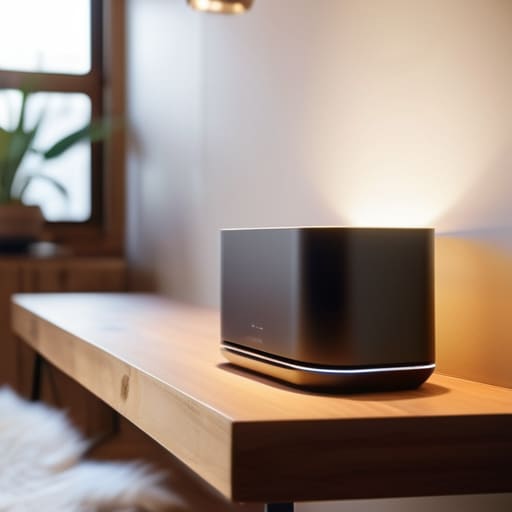
We’ve covered a lot of ground today, from the physical layout of your home to the invisible signals fighting for space in your living room. By moving your router to a more central, elevated spot and being mindful of those pesky devices causing interference, you’ve already taken the biggest steps toward a more stable connection. Remember, fixing slow Wi-Fi isn’t always about dropping hundreds of dollars on the latest high-end hardware; often, it’s just about optimizing what you already own through a little bit of strategic placement and smart troubleshooting.
I know how incredibly draining it can be when technology feels like it’s working against you instead of for you. Whether you’re trying to crush a coding project, hop on a crucial Zoom call, or just relax with a movie, you deserve a connection that keeps up with your pace. Don’t let a lagging signal make you feel tech-illiterate—tech is just a tool, and once you master these small adjustments, you’ll feel so much more empowered to command your digital space. You’ve got this, and I’m rooting for you to get back to what matters most!
Frequently Asked Questions
Is it actually worth spending the money on a new mesh WiFi system, or can I fix my current setup for free?
Honestly, I get this question all the time. Before you drop a few hundred bucks on a fancy mesh system, try the free fixes we just talked about. If you’ve optimized your router placement and cleared out the interference, but you’re still seeing dead zones in the far corners of your house, then yeah—it’s time to invest. Mesh is a game-changer for larger homes, but don’t spend a dime until you’ve exhausted your DIY options!
How can I tell if the problem is actually my internet service provider or just my own hardware?
This is such a common headache! To figure out if it’s your ISP or your gear, try this: plug a laptop directly into your modem using an Ethernet cable. If the speed is blazing fast there, your ISP is doing its job, and the culprit is likely your router or signal interference. If it’s still crawling even on a wired connection, it’s time to give your provider a call and demand some answers.
Do all those smart devices in my house—like my Alexa and smart bulbs—really slow down my connection that much?
It’s a great question, and honestly, it’s one I get asked a lot. The short answer? Yes, they can. Think of your bandwidth like a highway; every smart bulb and voice assistant is like another car taking up a lane. While one bulb won’t break the bank, having dozens of devices constantly “talking” to your router can definitely create some digital traffic jams. It’s all about managing that congestion to keep your main devices running smooth.