I remember sitting in a cramped corner of a Silicon Valley coffee shop a few years ago, trying to debug a stubborn piece of code, when my laptop suddenly sounded like a jet engine taking off. The heat radiating from the keyboard was so intense I actually had to stop working just to let it breathe. It’s incredibly frustrating when you’re in the zone and your hardware decides to throttle your productivity because it can’t handle the heat. Most people will tell you that you need to drop a hundred bucks on a fancy, glowing cooling pad, but honestly? That’s usually just more junk you don’t need. Learning how to keep your laptop cool shouldn’t require a massive budget or a degree in thermodynamics; it just requires a little bit of common sense and some practical maintenance.
I’m not here to sell you on expensive gadgets or overcomplicated tech myths. Instead, I want to share the straight-up, actionable methods I’ve picked up from years of software engineering and a bit of DIY tinkering. We’re going to dive into some simple hardware tweaks and smart habits that actually work to protect your machine. My goal is to give you the tools to keep your tech running smooth so you can stay focused on your next big project without the constant fear of a thermal shutdown.
Table of Contents
Spotting the Warning Signs of Laptop Overheating

Before you even notice a drop in performance, your hardware is usually trying to tell you something is wrong. The most obvious signs of laptop overheating are often physical: a chassis that feels uncomfortably hot to the touch or a fan that sounds like it’s trying to take off for a flight to Seattle. If you notice your machine suddenly lagging during a simple coding task or a video call, you might be dealing with preventing laptop thermal throttling issues. This happens when your system intentionally slows itself down to protect the internal components from permanent damage.
Another subtle red flag is a sudden, unexplained drain on your power. If you feel like your battery life has plummeted overnight, it’s often because the extra heat is wreaking havoc on your laptop battery heat management. I’ve seen so many people assume their battery is just dying, when in reality, the system is working overtime just to stay functional. Keeping an eye out for these little hiccups early on can save you from a much more expensive repair job down the road.
Improving Laptop Airflow for Peak Performance
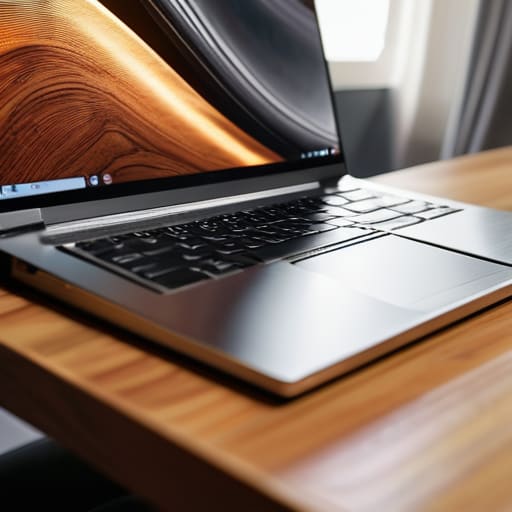
Once you’ve identified that your machine is running hot, the next step is getting that air moving again. I’ve learned the hard way that using your laptop on a soft surface—like a duvet or even a plush rug—is a recipe for disaster. It basically acts like a blanket, suffocating your vents and trapping heat right against the chassis. If you’re working from your couch, try propping the back up with a small book or a dedicated stand. Improving laptop airflow is often as simple as making sure there’s a clear path for the intake and exhaust to breathe.
If you want to get a bit more serious about it, I highly recommend investing in some best laptop cooling pads. They provide a steady stream of external air that can make a massive difference during heavy coding sessions or long video renders. For those of you who like to get your hands a little dirty—sort of like my weekend woodworking projects—you might also want to look into a quick internal dust-out. A bit of compressed air can clear out the gunk that’s blocking your fans, which is a huge part of preventing laptop thermal throttling and keeping your hardware snappy.
Quick Wins to Keep Your Temps Down
- First things first: ditch the bed and the couch. I know, it’s tempting to work from under a cozy blanket, but soft surfaces act like insulators and block your laptop’s vents entirely. Stick to a flat, hard surface like a desk or even a large hardcover book to give your fans the breathing room they need.
- If you’re a bit more tech-savvy (or just feeling adventurous), grab a can of compressed air. Dust is the silent killer of performance. Every few months, I like to give my vents a quick blast to clear out the lint and debris that build up and choke your cooling system.
- Take a look at what’s running in the background. If your fans are screaming, you might have a “resource hog” running a heavy process you don’t even need. Open up your Task Manager (or Activity Monitor on Mac) and close out those rogue browser tabs or background apps that are eating up your CPU cycles.
- Consider investing in a decent cooling pad. They aren’t just a gimmick; having those extra fans underneath your machine can make a massive difference, especially if you’re doing heavy lifting like video editing or coding all day long. It’s a small DIY-adjacent upgrade that pays off big time.
- Don’t be afraid to manage your power settings. If you aren’t doing anything intensive, switch your laptop to “Power Saver” or “Balanced” mode. It limits the maximum speed of your processor, which naturally generates less heat and keeps things running much more quietly.
Quick Wins to Keep Your Tech Running Cool
Pay attention to those red flags like loud fan whirring or sudden lag; catching heat issues early saves you from a much more expensive repair later.
Give your hardware some breathing room by using a hard surface or a simple DIY stand to make sure your vents aren’t getting choked by blankets or pillows.
Make cleaning your fans a regular part of your tech maintenance routine to keep the airflow clear and your laptop performing at its best.
## A Little Maintenance Goes a Long Way
“Think of your laptop like a piece of fine woodworking—if you don’t give it the space and care it needs to breathe, even the best tools will eventually start to fail you. Keeping things cool isn’t just about performance; it’s about respecting the tech you rely on every day.”
Sarah Mitchell
Keeping Your Tech Happy and Healthy
At the end of the day, keeping your laptop cool isn’t about performing complex surgery on your hardware; it’s about being mindful of how you use it. By staying alert to those warning signs like sudden fan noise or lag, and making sure you aren’t accidentally choking your vents by working on a soft blanket, you’re already ahead of the curve. Whether you decide to invest in a dedicated cooling pad or just opt for a hard, flat surface to improve airflow, these small, proactive steps will extend the lifespan of your machine and save you from a massive headache down the road.
I know that tech can sometimes feel intimidating, like it’s this fragile, mysterious box that might break at any moment. But I promise you, once you start understanding the “why” behind things like thermal management, you’ll feel so much more confident and in control. Think of your laptop like a piece of furniture you’re upcycling—it just needs a little bit of the right care and attention to keep performing beautifully. So, grab your notebook, take a look at your current setup, and start making those small tweaks today. You’ve got this!
Frequently Asked Questions
Is it actually worth investing in one of those fancy cooling pads, or is a simple laptop stand enough?
Honestly, it depends on what you’re actually doing. If you’re just browsing or writing code, a simple stand is plenty—just getting that device off the desk lets it breathe. But if you’re running heavy simulations or editing video, those fans in a cooling pad actually move the needle. My advice? Start with a stand to improve airflow first. If your temps are still spiking, then go ahead and invest in the pad.
Can running heavy software like video editors or games really cause permanent damage to my hardware?
It’s a fair question, and honestly, it’s one I get asked a lot. The short answer? Yes, it can, but it’s usually a slow burn rather than an instant death sentence. Running heavy software like Premiere or a demanding AAA game pushes your components to their thermal limits. If your cooling can’t keep up, that repeated heat stress can eventually degrade your battery or even cause tiny fractures in the solder. Don’t panic, though—just keep an eye on those temps!
How often should I actually be cleaning the dust out of my laptop's vents to keep things running smoothly?
Honestly, there’s no one-size-fits-all answer, but if you’re like me and carry your laptop everywhere, I’d aim for a quick blast of compressed air every few months. If you notice those fans starting to sound like a jet engine taking off, that’s your cue to dive in immediately. I usually do a deeper clean every six months to keep things running smooth and prevent any unexpected thermal throttling during a big project.