I was hunched over my desk last Tuesday, surrounded by half-finished woodworking sketches and a cold cup of coffee, when I felt that familiar, sinking feeling in my chest. I had just been locked out of my primary email account for the third time in a month because I couldn’t remember if I’d used an exclamation point or a special character in my latest password update. It’s incredibly frustrating, isn’t it? We’re told that digital security should be seamless, yet most people find that learning how to use a password manager feels like adding yet another complicated chore to an already overflowing to-do list.
I’m not here to sell you on some overpriced, bloated software suite that requires a PhD to navigate. Instead, I want to give you the straight talk on how to actually make this tech work for you, not against you. I’m going to walk you through my own streamlined process for setting one up, choosing the right tool, and—most importantly—making it stick so you never have to deal with that “forgot password” loop again. Let’s get your digital life organized and, more importantly, let’s make it simple.
Table of Contents
Master Password Security and Storing Sensitive Credentials Safely

Now, let’s talk about the “keys to the kingdom.” Your master password is the single most important piece of information you own in the digital world, because it unlocks everything else. When I first started using a manager, I made the mistake of picking something easy to remember, which was a huge oversight. Instead, you want to create a long, complex passphrase—think of a random sentence that only makes sense to you. To really nail your master password security, I highly recommend pairing it with a robust two-factor authentication setup. Whether it’s an authenticator app or a physical security key, that extra layer is what keeps the bad guys out even if they somehow guess your phrase.
Beyond just the main login, you need to be intentional about storing sensitive credentials safely. This includes things like your banking logins, social security numbers, or even digital copies of your passport. I always suggest using the “Secure Notes” feature within your manager for these items. It’s much safer than keeping a random spreadsheet or a sticky note on your desk. By following these best password management practices, you aren’t just organizing your life; you’re building a digital fortress that lets you breathe a little easier.
Choosing Your Tools Browser Extension vs Mobile App
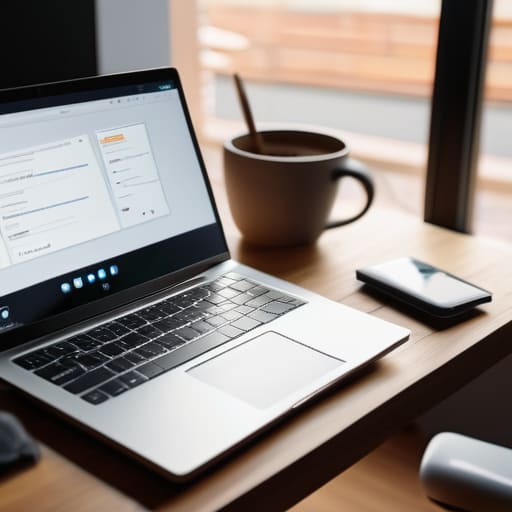
When you first dive into this, you’ll probably realize that most services offer both a browser extension and a mobile app. It can feel a bit redundant, but honestly, they serve two very different roles in your daily routine. I personally lean heavily on the browser extension when I’m sitting down at my desk to tackle work or deep-dive into some research. It’s seamless; it detects the login fields for you and fills them in with a single click, which is a lifesaver when you’re juggling dozens of tabs.
On the flip side, the mobile app is your best friend when you’re on the move—think checking your bank balance at a coffee shop or logging into a shopping app while waiting for the bus. When comparing a browser extension vs mobile app, it’s not about which one is “better,” but about how they complement each other. To get the most out of your setup, I always recommend installing both. This ensures that your credentials follow you everywhere, making it much easier to maintain consistent digital security tips across all your devices without any friction.
5 Pro-Tips to Level Up Your Password Game
- Audit your vault regularly—don’t just set it and forget it. Every few months, go through and delete old accounts you don’t use anymore; it keeps your digital footprint small and your vault clutter-free.
- Turn on Two-Factor Authentication (2FA) for your password manager itself. Since this vault holds the keys to your entire digital kingdom, you want an extra layer of protection, like an authenticator app, just to get in.
- Use the “Generate” feature every single time. I know it’s tempting to reuse a variation of a password you already know, but let the software create those long, chaotic strings of nonsense—that’s where the real security lives.
- Don’t forget to use the “Secure Notes” feature for more than just passwords. I use it to store things like my Wi-Fi codes, software license keys, and even those weirdly specific security questions that are impossible to remember.
- Get comfortable with the emergency access feature. Talk to your partner or a trusted family member about how they can access your vault in a true emergency; it’s a bit heavy to think about, but it’s a total lifesaver down the road.
Quick Wins: My Top Tips for Getting Started
Pick one reliable manager and stick with it—consistency is way more important than finding the “perfect” app on day one.
Don’t try to fix everything at once; start by changing your most important passwords, like your email and banking, to get some quick momentum.
Make sure you have a backup plan for your master password, like writing it down in a physical notebook, so you don’t accidentally lock yourself out of your own digital life.
A Shift in Mindset
“Think of a password manager not as another digital chore to manage, but as a way to finally offload that mental clutter—it’s about reclaiming your headspace so you can focus on building things, rather than just trying to remember them.”
Sarah Mitchell
Taking Control of Your Digital World

At the end of the day, getting started with a password manager is all about making small, intentional shifts in how you handle your digital life. We’ve covered a lot—from the absolute necessity of a rock-solid master password to the convenience of syncing your credentials between browser extensions and mobile apps. It might feel a bit overwhelming to migrate everything at once, but my best advice is to just start with one account. Once you see how much mental energy you save by not having to hit that “forgot password” button every single morning, you’ll realize that securing your digital footprint isn’t just a chore; it’s a massive productivity hack.
I know that diving into new tech tools can sometimes feel intimidating, especially if you didn’t grow up with a computer in your hand. But I promise you, this is one of those skills that pays dividends every single day. Think of it like learning a new woodworking technique or finally tackling that upcycling project in your garage—it takes a little patience upfront, but the finished result is something you can truly rely on. Don’t let the fear of a steep learning curve hold you back. Embrace the process, stay curious, and give yourself permission to learn at your own pace. You’ve totally got this!
Frequently Asked Questions
What happens if I lose my phone or my master password—am I locked out of everything forever?
That is the number one fear I hear, and honestly, it’s a valid one! If you lose your master password without a recovery key, you’re likely locked out—it’s the price we pay for high security. But don’t panic! Most managers offer “Emergency Access” or recovery codes. I always tell my clients: treat your recovery key like your passport. Print it out, tuck it in a safe, and you’ll never be stranded.
Is it actually safe to store all my sensitive info in one place, or am I just creating a single point of failure?
That is the million-dollar question, isn’t it? It feels a bit like putting all your eggs in one basket. But honestly, the risk of having one “master key” is much lower than the massive vulnerability of using weak, recycled passwords across dozens of sites. Think of it like a high-end safe in your house—it’s a single point of failure, sure, but it’s a hell of a lot more secure than leaving your jewelry scattered on the nightstand.
How do I go about moving all my old, messy passwords from my browser into the new manager without losing my mind?
I totally get it—looking at a cluttered browser password list feels a lot like staring at a messy workshop floor before a big project. Don’t panic! The easiest way is to use the “Export” feature in your browser settings to grab a CSV file, then simply “Import” that file into your new manager. It’s a massive time-saver. Just be sure to delete that CSV file immediately afterward so your data stays secure!